


Jenna Whitlow
2 min read · Oct 23, 2026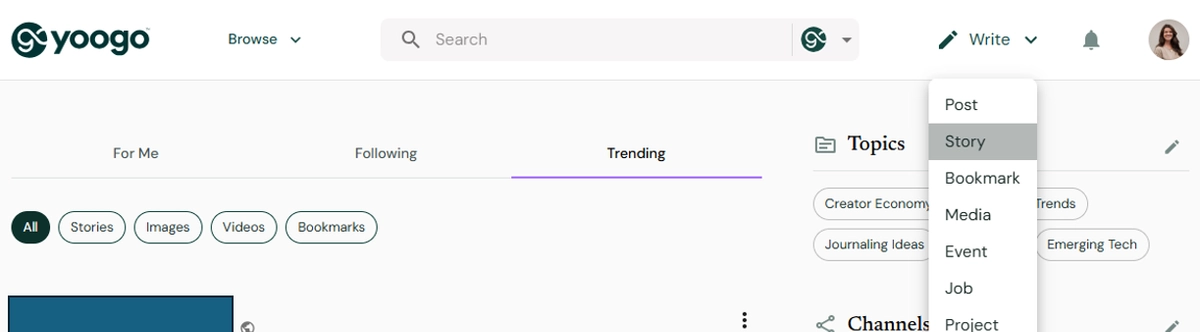
How to Publish a Story on Yoogo
To publish an article, open the drop‑down menu in the upper‑right corner and select Stories. A pop‑up will appear with fields for your title, main photo, and story text. Use the top toolbar to format text (bold, italic, underline, bullets, alignment), add links, insert YouTube videos, or upload additional photos. Use the yellow arrows to place text above or below any media. You must enter a title to save a draft.
You can also start a story from your profile by selecting your avatar → My Profile → Content → Stories → Add Story. Drafts and published stories appear under the three‑bar menu in the upper‑left once a story is open.
If you don’t want a story to appear on your profile, unselect Add story to my profile when publishing.
When you click Publish, you can update your thumbnail image and optionally add an Originally published elsewhere link so the original platform receives referral value.
Choose who can see your story: Public, Followers, or Contacts.
Under Promote for Free, attach Topics, Industries, People, Businesses, and Hashtags (up to 10 in each category). Businesses can also attach Products and Services to direct traffic.
When you’re ready, click Publish in the lower‑right and choose whether it goes to your Feed or your Channel. This cannot be changed later, but you can still edit the story..
How to Edit a Story
You can edit a story from your feed or your profile by selecting Edit from the post itself.
To edit only the writing: Make your changes, then click Save in the upper‑right corner. If you want a duplicate, choose Make a Copy — it will be saved to Drafts.
To edit anything else — topics, thumbnails, attached details, or the feed you’re publishing to — you’ll need to Unpublish the story first. After adjusting your selections, you can Republish it.