


Peter Dahl
6 min read · Aug 17, 2026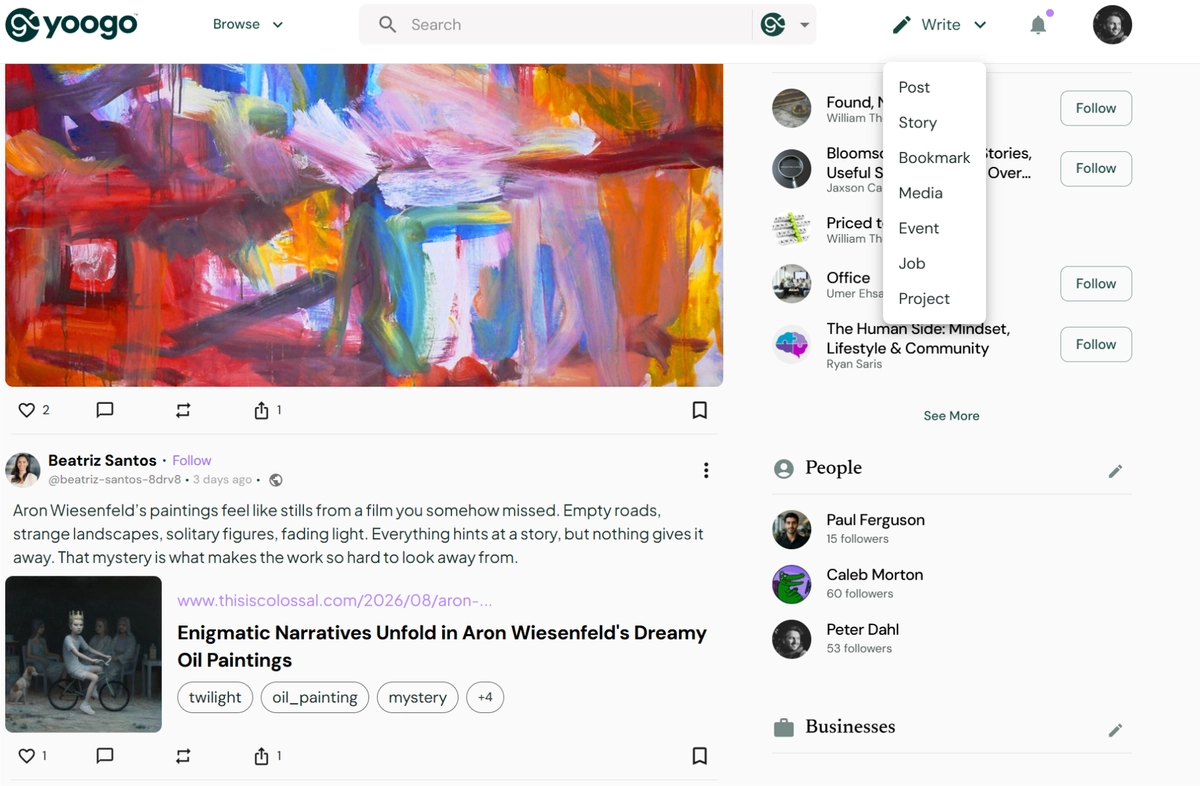
Yoogo lets you publish and share content in several ways, including short posts and longer stories, images, videos, web bookmarks, documents, events, projects, jobs, and products.
You can create original content, share content from other websites, publish media on its own, or attach media and documents to a regular post.
This article provides an overview of the different ways you can publish on Yoogo. More detailed instructions for individual content types are available in their respective Help articles.
Start Publishing
You can create most content on Yoogo from the Write menu in the application header.
To publish new content:
- Click Write in the application header.
- Select the type of content you want to publish.
- Enter the required information.
- Add images, videos, links, documents, or other media when applicable.
- Choose where you want to publish the content and who can see it.
- Review your content and publish it.
The Write menu includes:
- Post
- Story
- Media
- Bookmark
- Event
- Project
Business Plus users can also publish:
- Job
- Product
Create a Post
Use a regular Post for short-form content such as updates, comments, announcements, observations, or other information you want to share with your audience.
A post can contain text on its own or can include additional content such as:
- Images
- Videos
- Web links
- Web bookmarks
- Documents
This makes regular posts useful when you want to add your own comments or explanations to the content you share.
For detailed instructions, see Creating a Post.
Publish a Story
Use Stories for longer-form content such as:
- Articles
- Blog posts
- Guides
- Essays
- Commentary
- Longer professional or creative content
Stories provide more space than regular posts and are intended for content that benefits from a more complete presentation.
Published Stories can also appear in the Content section of your profile.
For detailed instructions, see Posting a Story.
Publish Images and Videos
You can publish images and videos in two ways.
You can:
- Publish the media on its own, when the image or video is the main content.
- Attach the media to a regular post, when you want to include accompanying text, comments, or additional context.
This gives you flexibility in how you present visual content.
Published images and videos can also appear in the Media section of your profile, where they can be browsed in a visual gallery.
For detailed instructions, see Posting Images and Videos.
Share Web Bookmarks
Web Bookmarks allow you to share useful or interesting content from other websites.
You can post a URL from another website and use it to create a bookmark that references the original web content.
Bookmarks can be:
- Published on their own
- Added to a regular post with your own comments or description
Web Bookmarks can also appear in both your Content and Media areas, making them easy for visitors to discover later.
For detailed instructions, see Posting a Web Bookmark.
Share YouTube and Vimeo Videos
Yoogo allows you to share supported videos from services such as YouTube and Vimeo.
Instead of uploading the video file to Yoogo, you can provide the video link and display it within your post.
This is useful when you want to share a video that is already hosted on another platform.
For detailed instructions, see Embedding YouTube and Vimeo Videos.
Attach Documents
You can attach documents to posts and provide accompanying text or a description explaining the document.
Documents can be useful for sharing:
- Reports
- Presentations
- Research
- Guides
- White papers
- Reference materials
- Other professional or informational documents
Published documents can also become part of the Content section of your profile.
For detailed instructions, see Attaching Documents to Posts.
Post an Event
Yoogo allows users to create and publish events.
Events can be used for activities such as:
- Meetings
- Conferences
- Webinars
- Workshops
- Networking events
- Community events
- Other scheduled activities
Published events can also appear on your profile and may be discovered by other users across Yoogo.
For detailed instructions, see Posting an Event.
Post a Project
Projects let users describe work they need completed and connect with freelancers or service providers who may be interested in doing it.
When creating a project, you can provide information about the work, requirements, and other relevant project details.
For detailed instructions, see Posting a Project.
Post a Job
Business Plus users can publish job opportunities on Yoogo.
Job postings allow businesses to present employment opportunities and make them discoverable to users looking for work.
For detailed instructions, see Posting a Job.
Post a Product
Business Plus users can also publish products.
Products can be presented through Yoogo's marketplace and business discovery features, allowing users to find products offered by participating businesses.
For detailed instructions, see Posting a Product.
Choose Where to Publish
You can generally publish content to either the main Yoogo environment or to a Channel.
Publish to the Feed
Publishing to the feed lets your content to appear according to the audience you select.
Depending on the available options, you can publish content to:
- All Users
- Your Followers
- Your Contacts
Choose the audience based on who you want to reach with the post.
Publish to a Channel
You can also publish content directly to a Channel.
Channels provide a way to organize content around a particular topic, interest, organization, community, or audience.
When creating content, select the appropriate Channel when you want the post to become part of that Channel.
Browse Content in Feed or Gallery View
Because Yoogo supports many different types of content, users can browse content in different ways.
The standard feed is useful for viewing a mixture of posts and activity.
For more visual content, such as:
- Images
- Videos
- Web Bookmarks
You can switch to Gallery View.
To browse content using Gallery View:
- Open the feed.
- Click Filter at the top of the feed.
- Select the type of content you want to view.
- Choose Gallery View.
Gallery View provides a more visual way to explore graphical and media-rich content.
Your Published Content Builds Your Profile
Publishing content on Yoogo does more than add information to the feed.
Your published content can also automatically become part of your profile.
Depending on the type of content you publish, it may appear in areas such as:
- Content
- Media
- Latest Activity
- Your Channels
- Your Events
- Your Projects
- Other relevant profile sections
This means that you don't need to manually maintain a separate collection of everything you have published manually.
As you continue posting stories, media, bookmarks, documents, events, and other content, your Yoogo profile grows with your activity.
Sharing Content From Other Sources
Yoogo allows you to share and reference content from elsewhere on the web through links, bookmarks, and supported embedded media.
When sharing content created by someone else, make sure that your use of the content is permitted and that you provide any required attribution, licensing, or source information is provided.
Whenever possible, use links, bookmarks, or embedded content to preserve the connection to the original source.
Interest Area