


Peter Dahl
6 min read · Oct 23, 2026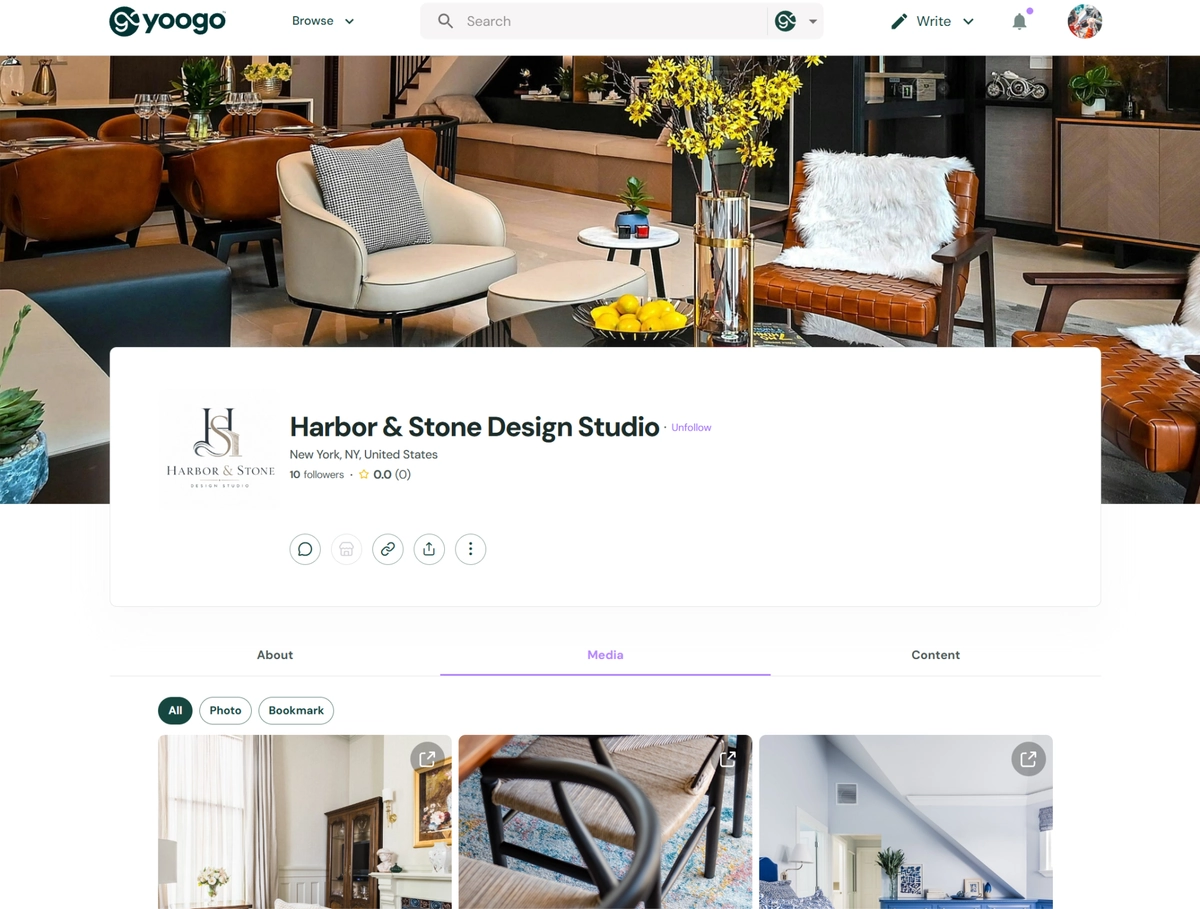
When you create a Business Basic or Business Plus account on Yoogo, you automatically receive two separate profiles:
- An Individual Profile
- A Business Profile
Your Individual Profile represents you personally, while your Business Profile represents your business or organization.
These profiles are separate. Other users will not automatically see that your Individual Profile is associated with a particular Business Profile unless you choose to make that connection visible.
Access Your Business Profile
To access your Business Profile:
- Click your avatar in the upper-right corner of the application.
- Select Business Profile from the menu.
- Your Business Profile will open.
From your Business Profile, you can manage your business information, published content, About page, contacts, privacy settings, and other profile features.
Your Business Profile Builds Automatically
Much of your Business Profile is created automatically from the activity you perform as your business.
When you publish content or create activity under your Business Profile, Yoogo automatically adds the appropriate information to your business pages.
This can include:
- Posts and stories
- Channels
- Events
- Projects
- Jobs
- Other business content and activity
You do not need to copy this content to your Business Profile manually.
Make sure you are acting as your business when publishing the content you want associated with the business. Yoogo will then organize and display that content on the appropriate sections of your Business Profile.
Information You Can Add Manually
You can also add information specifically designed to introduce and describe your business.
This includes:
- Business logo
- Background image
- Business tagline
- Business email
- Locations
- Website and social media links
- Business overview
- Introductory image or video
- Industry classifications
- Certifications and awards
- Business contacts
None of these sections is required. However, completing the information that is relevant to your business can make your profile more useful to visitors and improve your business's discoverability across Yoogo.
Add or Change Your Business Logo
Your business logo helps identify your organization throughout Yoogo.
To add or change your business logo:
- Open your Business Profile.
- Click the vertical three-dot menu (⋮) located below the business name.
- Select Change Business Logo.
- Upload the image you want to use.
- Save your changes.
The new logo will be displayed on your Business Profile and other areas of Yoogo where your business identity appears.
Edit Your Basic Business Information
You can edit important business information directly from your Business Profile.
This can include:
- Business tagline
- Business email
- Business locations
- Website links
- Social media links
To update this information:
- Open your Business Profile.
- Click the vertical three-dot menu (⋮) below the business name.
- Select Edit Profile Details.
- Enter or update the desired information.
- Save your changes.
Complete Your Business Overview
The Overview section of the About page lets you give visitors more information about your business.
You can add a brief description explaining what your business does, who it serves, and what sets it apart.
You can also provide core business information such as:
- Year founded
- Revenue information
- Ownership type
- Number of employees
- Entity type
- Headquarters information
Add as much or as little information as is appropriate for your business.
Add Your Industry Classifications
The Overview section also allows you to select primary and secondary industry classifications for your business.
Accurate industry classifications improve discoverability. Yoogo uses these classifications to organize businesses and help users find relevant companies through directories and Advanced Search.
Select the classifications that most accurately represent the industries in which your business operates.
Add a Promotional Image or Video
The About page allows you to add promotional media that visitors can see when exploring your Business Profile.
Use this area to introduce your company, showcase your work, explain your products or services, or present your brand visually.
You can add:
- An image
- A video file
- A supported video link, including YouTube or Vimeo
Choose media that gives visitors a useful introduction to your business.
Add Certifications and Awards
Businesses can use the Certifications section to display professional certifications, industry credentials, notable awards, recognitions, or similar accomplishments.
To add a certification or recognition:
- Open the About page of your Business Profile.
- Locate the Certifications section.
- Click Add Certification.
- Enter the requested information.
- Save your changes.
Displaying relevant certifications and awards gives visitors additional information about your business's qualifications, accomplishments, and professional standing.
Add Business Contacts
You can add designated contacts to your Business Profile so visitors know who they can contact for information about your business.
Business contacts are displayed on the Business Profile and can serve as points of contact for customers, partners, prospects, or other Yoogo users.
A listed business contact must have a Yoogo account.
Business owners can invite:
- Existing Yoogo members
- People who are not yet Yoogo members
When you invite someone to become a business contact, they receive a system notification or invitation asking them to accept the role.
Once they accept the invitation, you can display the person's contact information can be displayed as part of your Business Profile.
This lets businesses feature the right people for inquiries without requiring every visitor to contact the business owner directly.
Manage Business Profile Privacy
You control which parts of your Business Profile are visible to other users and to the public. You can manage Business Profile visibility settings through the profile management and privacy controls.
To access these settings directly from your profile:
- Open your Business Profile.
- Click Manage Page Visibility and Privacy.
- Review the available visibility settings.
- Select which information and profile sections you want to make visible.
- Save your changes.
Review these settings whenever you add information that you may not want displayed publicly.
Change the Order of Profile Sections
You can customize how information is presented by changing the order of sections on several Business Profile pages.
Section ordering is available on:
- About
- Content
- Business
To change the order:
- Open the page you want to organize.
- Click Change Order.
- Drag and drop the individual sections into your preferred order.
- Save the new arrangement.
Please place the information most important to your visitors near the top of each page.
Keep Your Business Profile Current
Your Business Profile is designed to grow with your activity on Yoogo.
You don't need to continuously rebuild the profile manually. Instead, publish stories, channels, events, projects, jobs, and other content as your business, and Yoogo will automatically organize that activity on your Business Profile.
At the same time, periodically review your manually entered information, including:
- Logo and background image
- Tagline and contact information
- Business overview
- Industry classifications
- Promotional media
- Certifications and awards
- Business contacts
- Privacy settings
A complete, up-to-date Business Profile gives visitors a clearer understanding of your organization and helps your business appear in relevant searches and discovery experiences across Yoogo.
Interest Area