


Peter Dahl
4 min read · Aug 14, 2026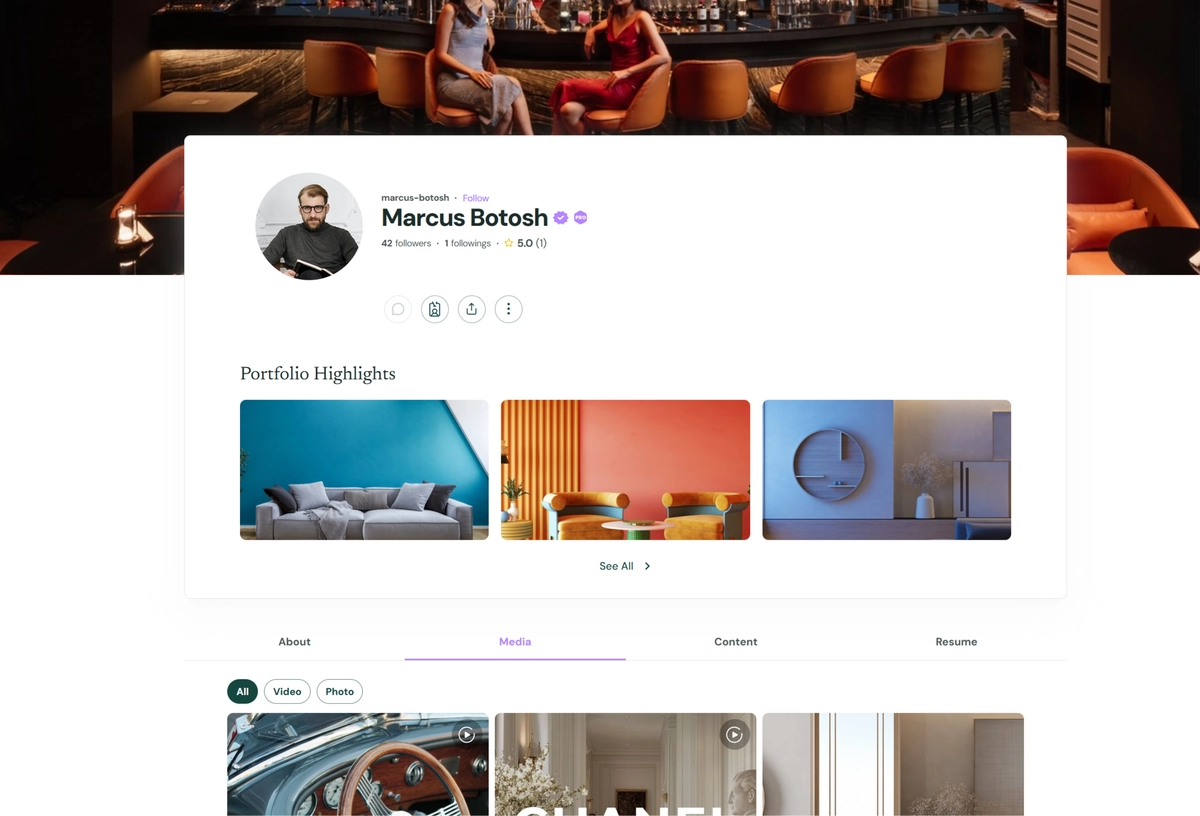
A Freelancer Profile includes all the features available with an Individual Profile, along with additional tools designed to help you present your professional work, services, experience, rates, and availability.
Your Freelancer Profile can include:
- Portfolio highlights
- A business overview
- Promotional images or videos
- Hourly rate
- Minimum project size
- Availability
- Services you provide
- Skills and areas of expertise
Completing these sections helps potential clients understand what you do and what type of work you are available for. It also improves your discoverability across Yoogo.
In particular, properly listing and classifying your services is important because Yoogo uses this information to make your profile and services discoverable through keyword searches, service directories, and Advanced Search.
Freelancers are also encouraged to list their relevant skills so users searching for particular capabilities can find them more easily.
Set Up Your Profile Image, Cover Photo, and Basic Information
Freelancer Profiles use the same profile image, background image, tagline, About Me, website, and social media features as Individual Profiles.
To set up these elements, follow the instructions in Setting Up Your Individual Profile.
Add Your Portfolio Highlights
We recommend adding Portfolio Highlights whenever you have previous work to showcase.
Portfolio Highlights give potential clients a quick way to understand your experience, capabilities, and the type of work you can provide. Use this section to showcase completed projects, examples of your work, case studies, or other projects that best demonstrate your skills.
To add a Portfolio Highlight:
- Click the vertical three-dot menu (⋮) on your profile.
- Select Add Portfolio Highlights.
- On the Portfolio Highlights page, click Add Highlights.
- In the Add Project dialog, enter the:
- Project Title
- Description
- Project URL, if available
- Save the project.
Organize Your Portfolio Highlights
The Portfolio Highlights page also allows you to change the order of your projects.
The top three Portfolio Highlights are featured directly on your Freelancer Profile. Visitors can still access additional projects through your Portfolio Highlights page.
Place the projects that best represent your work and capabilities in the first three positions.
Complete Your Freelancer Overview
The About section of your Freelancer Profile provides additional information about your freelance business and the type of work you are available to perform.
From this section, you can:
- Upload a promotional image or video
- Add or edit your business overview
- Set your hourly rate
- Specify your minimum project size
- Set your availability
To add or update this information:
- Open the About section of your Freelancer Profile.
- Click Manage Overview.
- Enter or update the desired information.
- Upload a promotional image or video if you would like to showcase your work or services visually.
- Save your changes.
Use the Overview to explain what you do briefly, the clients you work with, your areas of expertise, and the type of projects you are interested in.
Add Your Services
The About section also allows you to list the specific services you provide.
Adding services is an important part of setting up your Freelancer Profile. When you publish a service, Yoogo can use the information to include you and your services in relevant directories and search results.
Properly entered services can help users find you through:
- Keyword searches
- Advanced Search
- Service classifications
- Yoogo directories
- Public web and internet search
To add a service:
- Open the About section of your Freelancer Profile.
- Click Add New Service.
- In the service dialog, enter the:
- Service Title
- Service URL, if applicable
- Description
- Service Classification
- Save your service.
Choose the Correct Service Classification
Selecting the appropriate Service Classification is especially important.
Yoogo uses service classifications to organize services and help users discover freelancers through Advanced Search and service directories. Choose the classification that most accurately describes the service you provide.
For example, rather than describing yourself only as a general consultant, designer, or developer, add the specific services you offer and classify each one appropriately.
This makes it easier for potential clients searching for that exact type of service to find you.
Add Your Skills
Freelancers are also encouraged to list their professional skills and areas of expertise.
Skills give potential clients another way to understand your capabilities and can help your profile appear when users search for professionals with particular experience.
Include the skills that most accurately represent the work you are qualified and available to perform.
Keep Your Freelancer Profile Current
Your Freelancer Profile works best when it accurately reflects your current work and availability.
As your business develops, periodically update your:
- Portfolio Highlights
- Overview
- Promotional media
- Rates
- Availability
- Services
- Service classifications
- Skills
Continue publishing content on Yoogo as well. Your stories, media, documents, bookmarks, channels, and other published activity automatically contribute to your profile and give potential clients additional ways to discover your expertise and learn about your work.
Interest Area